
Backups and undo
Before every change it writes to your phone, Jiggle Mode saves the layout your phone showed just before, on your Mac. Any of those backups can be put back.
#Undo a change from the editor
- Click the History button in the toolbar (the clock).
- Pick a backup. Just now is the layout from just before your last change.
- Look at the preview and Restoring it would list.
- Click Restore this layout.
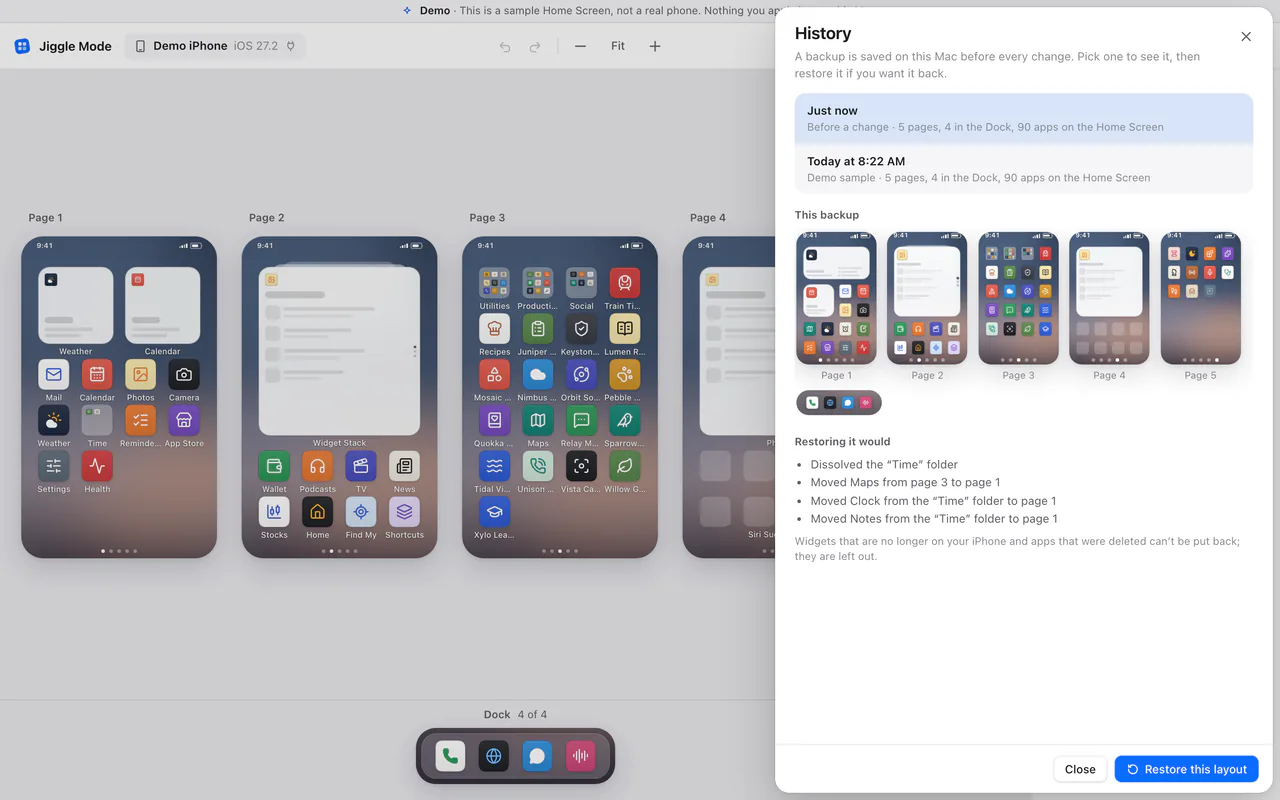
Restoring is a change like any other: it is checked, backed up first, read back from the phone, and put back if it didn't land.
#Undo from Terminal
jigglemode backupslists every backup for the connected phone, newest first.
jigglemode restore --latestputs back the layout from just before the last change. To restore an older one, give its id from the list:
jigglemode restore <backup-id>The command shows you what restoring would change and asks before writing.
#Undo through your agent
Ask it: "Undo the last change to my Home Screen." It shows you what restoring the backup would change and asks you first, and then Jiggle Mode asks you to confirm too. See Using it with your AI agent.
#What a backup can't bring back
- Apps you deleted since the backup are left out.
- Widgets that are no longer on the phone are left out too, including ones you removed with Jiggle Mode. Widgets can't be created from your Mac, so add them again on the phone.
- Widgets added since the backup are kept, not removed: Jiggle Mode never removes a widget unless you ask it to. They are placed where they are now if there is room, and the preview says where.
- Empty gaps between icons and hidden pages were never visible to Jiggle Mode, so backups don't include them.
The restore preview lists anything that will be left out.
#Where backups are kept
On your Mac, in ~/Library/Application Support/Jiggle Mode/devices/, one folder per phone. Each backup is a small file holding the layout (app ids, folder names, positions). Nothing is uploaded anywhere. See Privacy and security for everything Jiggle Mode stores and how to remove it.