Reviewing and applying
When your Home Screen looks right in the editor, click Review (or press ⌘ ↵). Nothing reaches your phone until you click Apply in the Review sheet.
#The Review sheet
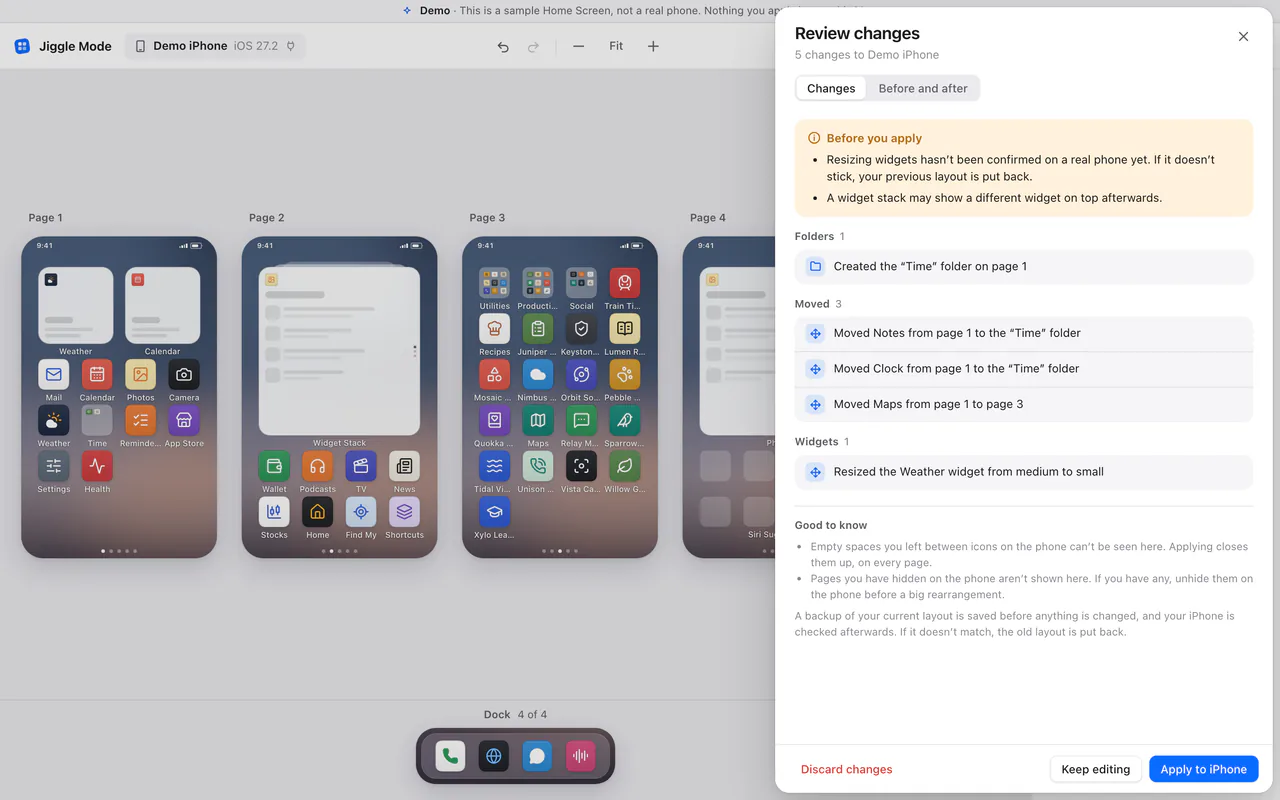
- Changes lists every change in plain words, grouped: folders, moves, the App Library, widgets, pages.
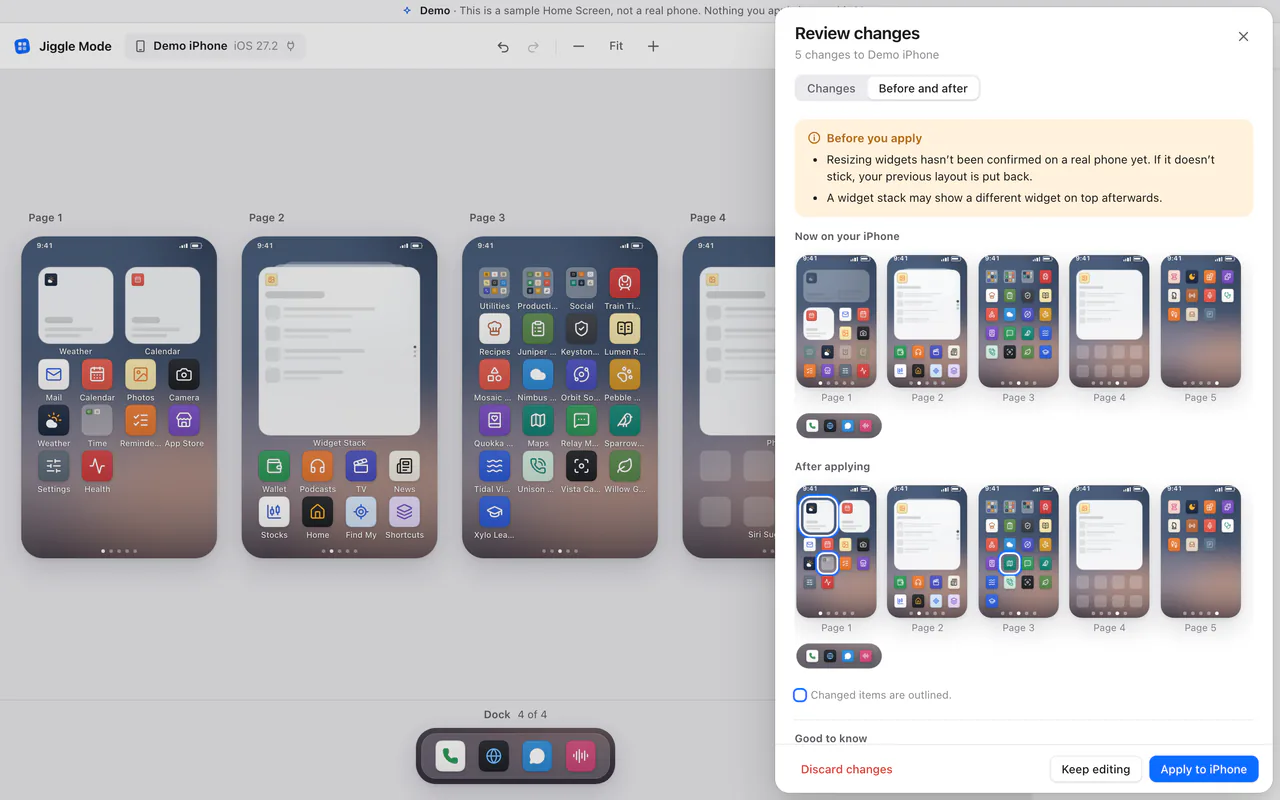
- Before and after shows small pictures of every page as it is on your phone now and as it will be. Changed items are outlined.
- Before you apply lists anything worth knowing first, such as a widget size that hasn't been confirmed on a real phone, or a widget stack that may show a different widget on top.
- Good to know reminds you of things the editor can't see, such as gaps between icons and hidden pages.
From here you can Keep editing, Discard changes (back to how your phone is now), or Apply.
#What happens when you apply
Keep the phone connected, unlocked and on its Home Screen. Jiggle Mode then:
- Reads your phone again, to make sure nothing changed since you started.
- Checks the new layout against the Home Screen's rules (a full Dock, a full page, a widget that won't fit).
- Saves a backup of your current layout on your Mac.
- Sends the new layout to your phone.
- Reads the phone back and compares it with what you asked for.
- If it doesn't match, puts your previous layout back and checks that too.
This usually takes a few seconds. A change always runs to its end, even if you close the browser tab.
#What each result means
#Done
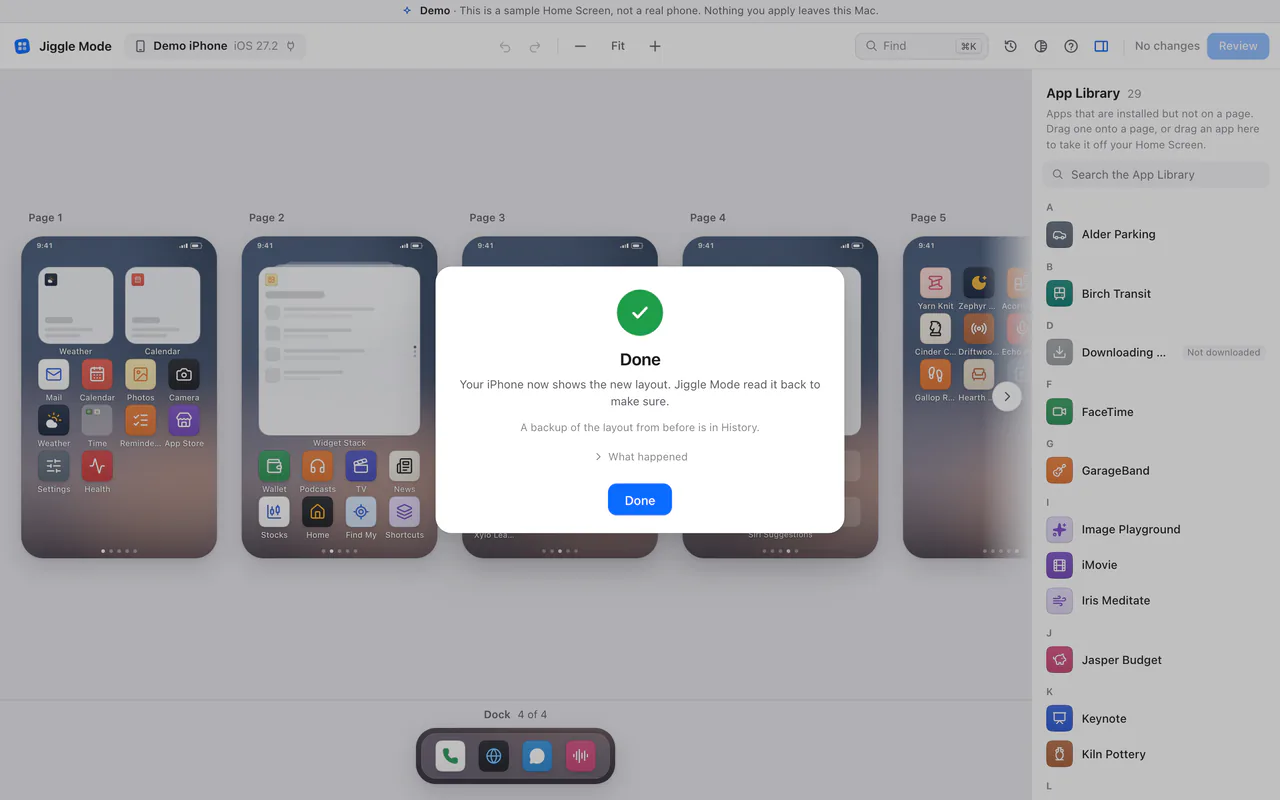
Your phone now shows the new layout. Jiggle Mode read it back to make sure. A backup of the layout from before is in History if you want to undo it.
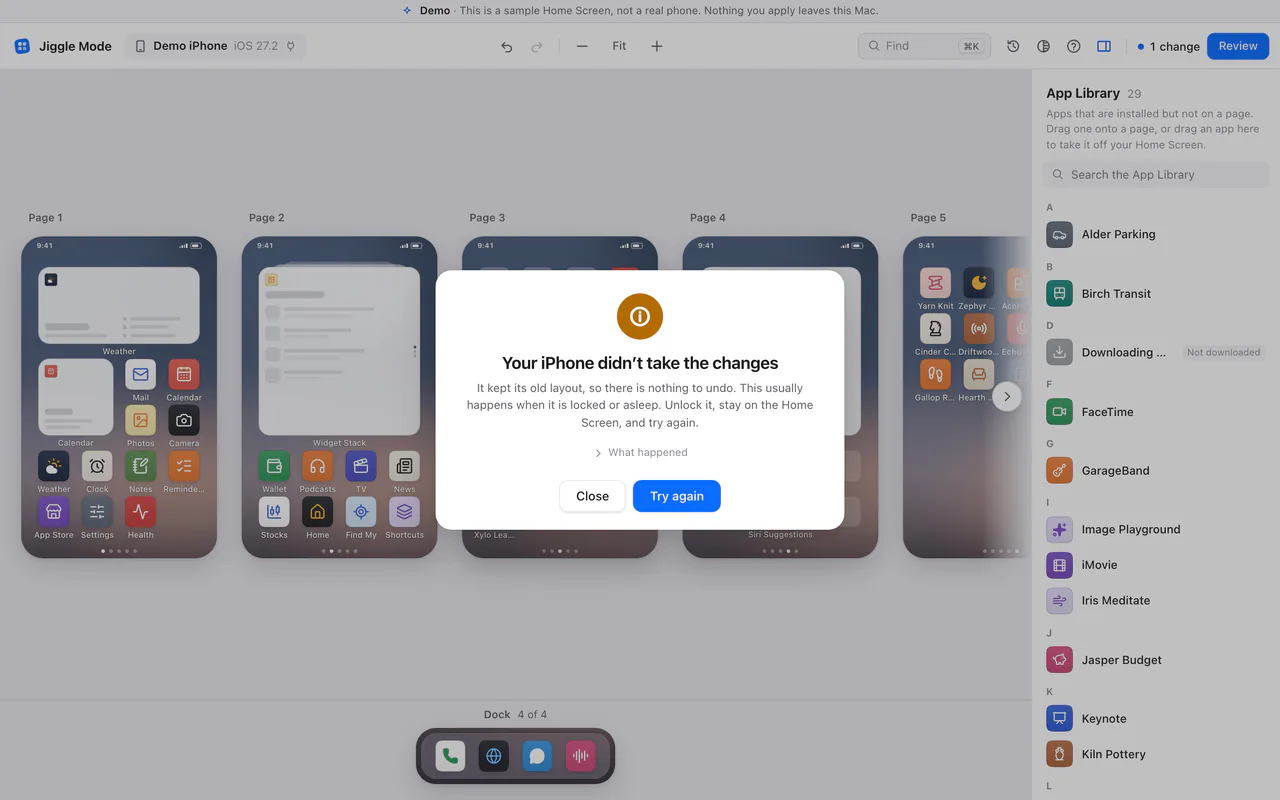
#Your iPhone didn't take the changes
The phone kept its old layout, so there is nothing to undo. This usually happens when the phone is locked or asleep.
What to do: unlock the phone, stay on the Home Screen, and click Try again.
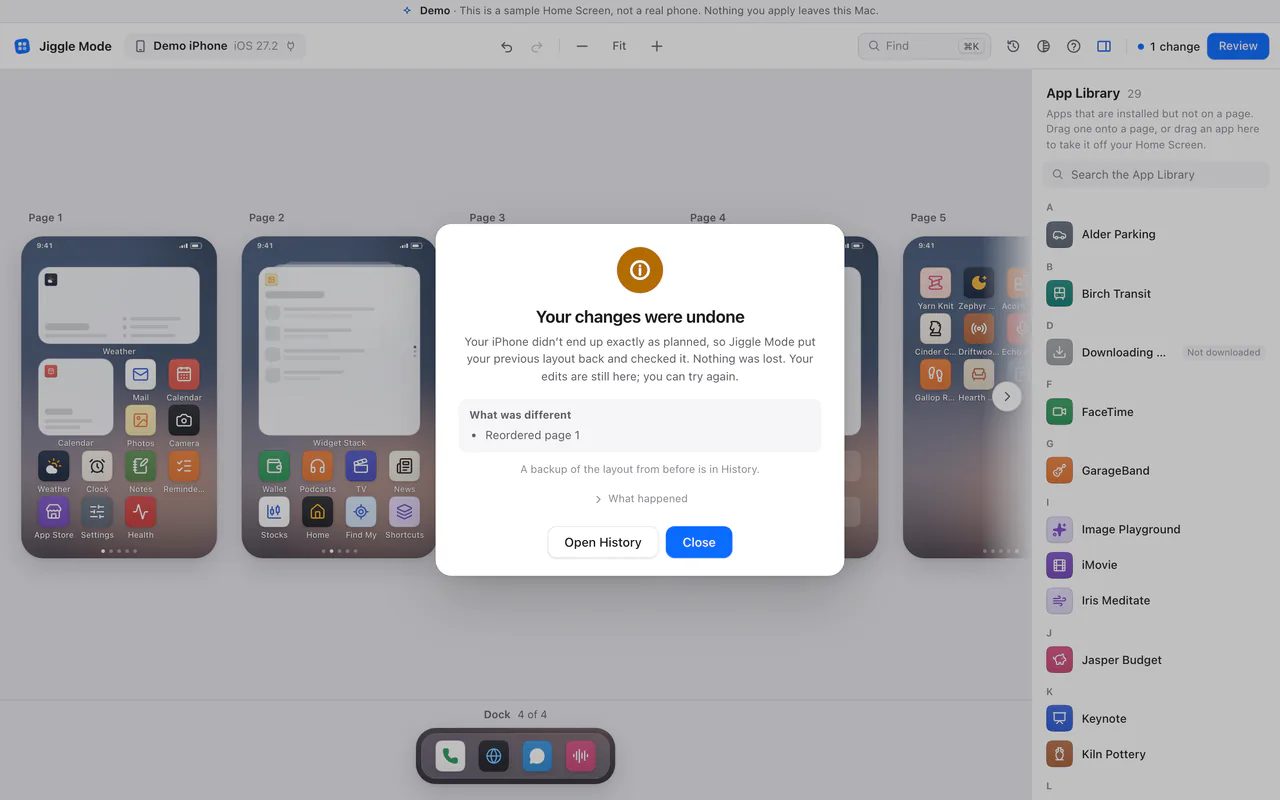
#Your changes were undone
The phone didn't end up exactly as planned, so Jiggle Mode put your previous layout back and checked it. Nothing was lost, and your edits are still in the editor. What was different lists what didn't match.
What to do: try again, perhaps with fewer changes at once. If it keeps happening, write to hello@jigglemode.com with what What was different says.
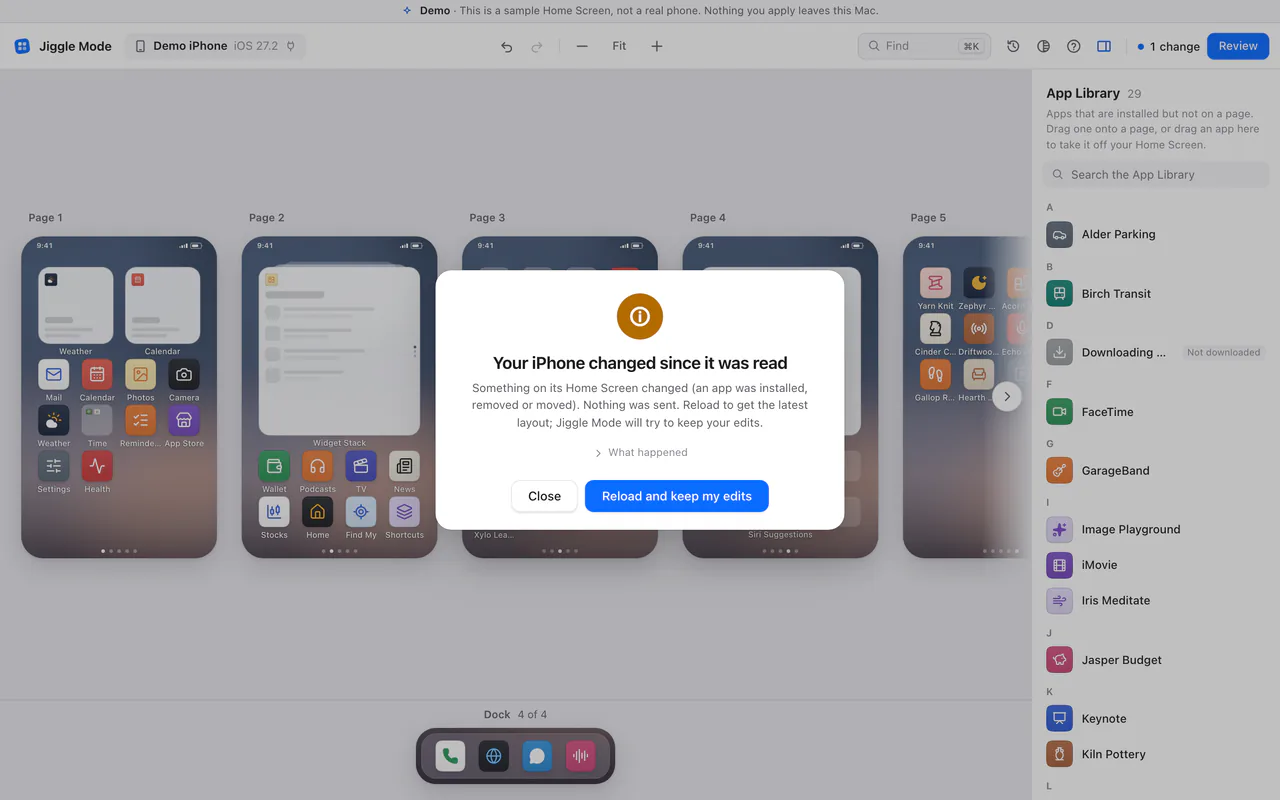
#Your iPhone changed since it was read
Something changed on the phone's Home Screen while you were editing (an app was installed, removed or moved). Nothing was sent.
What to do: click Reload and keep my edits. Jiggle Mode reads the phone again and tries to keep your edits on top.
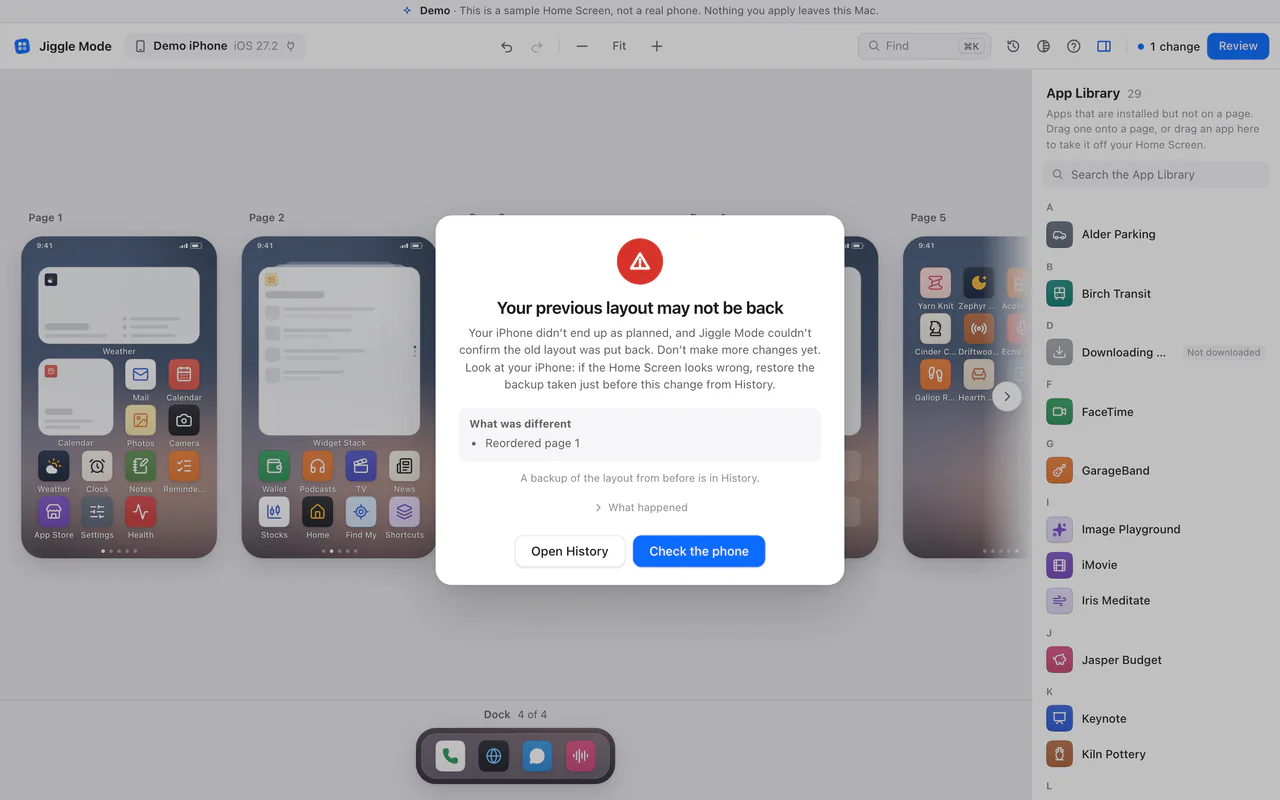
#Your previous layout may not be back
The phone didn't end up as planned, and Jiggle Mode couldn't confirm that the old layout went back.
What to do: don't make more changes yet. Look at your phone. Then click Check the phone. If the Home Screen looks wrong, restore the backup taken just before this change from History.
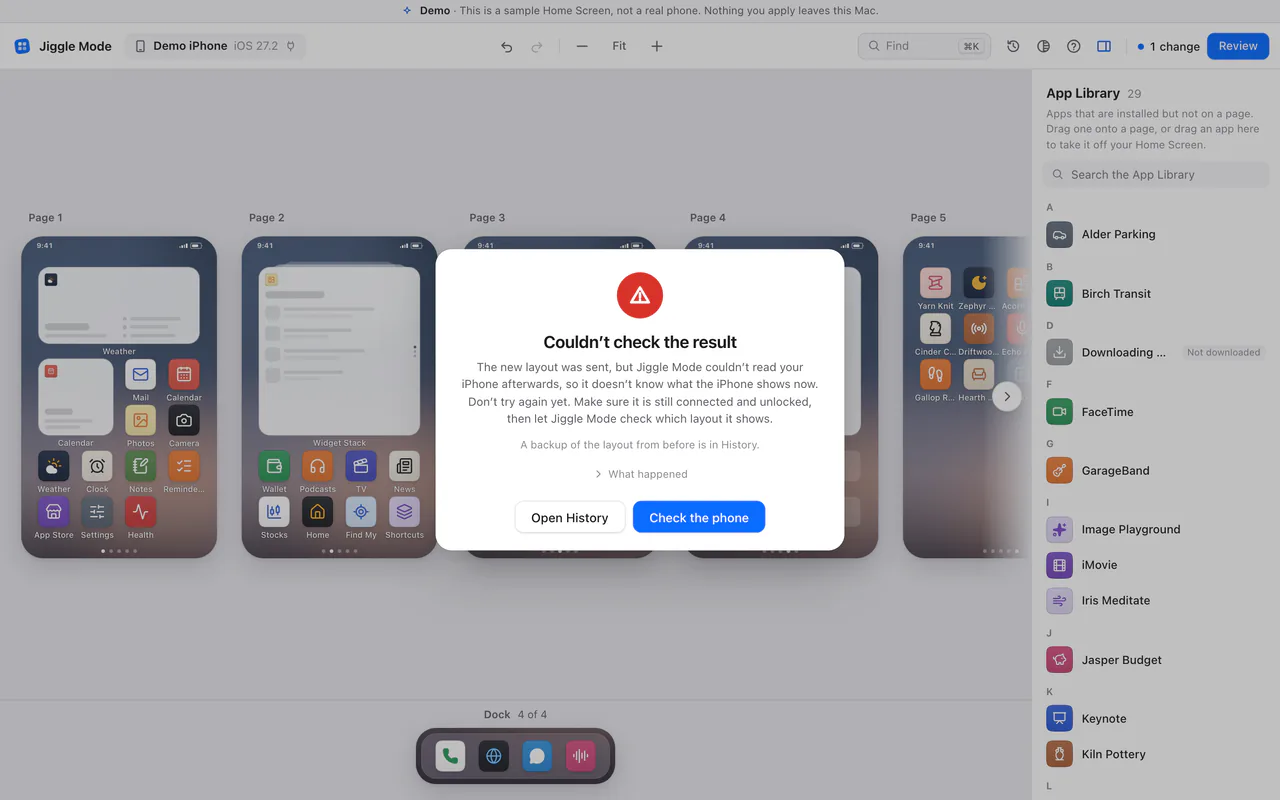
#Couldn't check the result
The new layout was sent, but Jiggle Mode couldn't read the phone afterwards (for example, the cable came out), so it doesn't know what the phone shows.
What to do: don't try again yet. Make sure the phone is connected and unlocked, then click Check the phone. Jiggle Mode reads it and tells you whether it shows your old layout, the new one, or something else, and lets you make changes again. If it looks wrong, restore the backup from History.
In Terminal, jigglemode resolve does the same as Check the phone.
#Why it is so careful
A Home Screen is personal and hard to rebuild from memory. So Jiggle Mode only says Done when it has read the phone back and seen exactly what you asked for, and it never tries the same change twice when it doesn't know what happened. Every outcome is described plainly, with the next step.