
Get started
This takes about five minutes: install the app, plug in your phone, tap Trust, and look around. Nothing changes on your phone until you review and apply a change yourself.
#What you need
- A Mac with macOS 11 Big Sur or later, Apple silicon or Intel.
- An iPhone or iPad, and a cable that connects it to your Mac.
- Your phone's passcode, to let it trust your Mac the first time.
Nothing is installed on the phone, and no account or jailbreak is needed.
#1. Install Jiggle Mode
Download the disk image from the download page, open it and drag Jiggle Mode to your Applications folder.
Or, with Homebrew, run this in Terminal:
brew install --cask belweave/tap/jigglemode#The jigglemode command
Some things (Wi-Fi setup from Terminal, connecting an AI agent, scripting) use the jigglemode command. Homebrew sets it up for you. If you installed from the disk image, open Jiggle Mode, click its icon in the menu bar and choose Install Command Line Tool…. It puts one link to the program in a folder Terminal already searches (your PATH) that needs no password: ~/.local/bin if it's on your PATH, else /usr/local/bin or Homebrew's folder if you can write there.
If no such folder exists, it uses ~/.local/bin and tells you plainly that Terminal won't find jigglemode by name yet, with the one line to paste into Terminal that fixes it (and a Copy Command button). Or choose Install for All Users, which uses /usr/local/bin and asks for an administrator password.
Check it worked with jigglemode --version. The command is the same program as the app, at /Applications/Jiggle Mode.app/Contents/Helpers/jigglemode.
#2. Plug in and unlock your phone
Connect your iPhone or iPad to your Mac with a cable and unlock it. Keep it unlocked and on the Home Screen while you work: a locked phone is expected to ignore changes.
Tip
While you rearrange, set Auto-Lock to Never on the phone (Settings, Display & Brightness, Auto-Lock), and set it back afterwards.
#3. Open the editor
Open Jiggle Mode from your Applications folder. A small Jiggle Mode icon appears in the menu bar, and the first time, the editor opens in your browser at a private address on your Mac. After that, choose Open Jiggle Mode from the menu (or open the app again) to bring the editor up. The menu also shows the connected phone. Jiggle Mode doesn't start at login by itself; to have it there, add it in System Settings, General, Login Items.
You can also type jigglemode in Terminal. If the browser doesn't open, copy the address it printed (it starts with http://127.0.0.1) into your browser.
When you're done, choose Quit Jiggle Mode from the menu. If a change is still on its way to the phone, it waits until the phone has been checked.
#4. Let your phone trust your Mac
The first time, your phone needs to trust your Mac. When it asks Trust This Computer?, tap Trust and enter your passcode. If it doesn't ask, click Ask iPhone to trust this Mac in the editor.
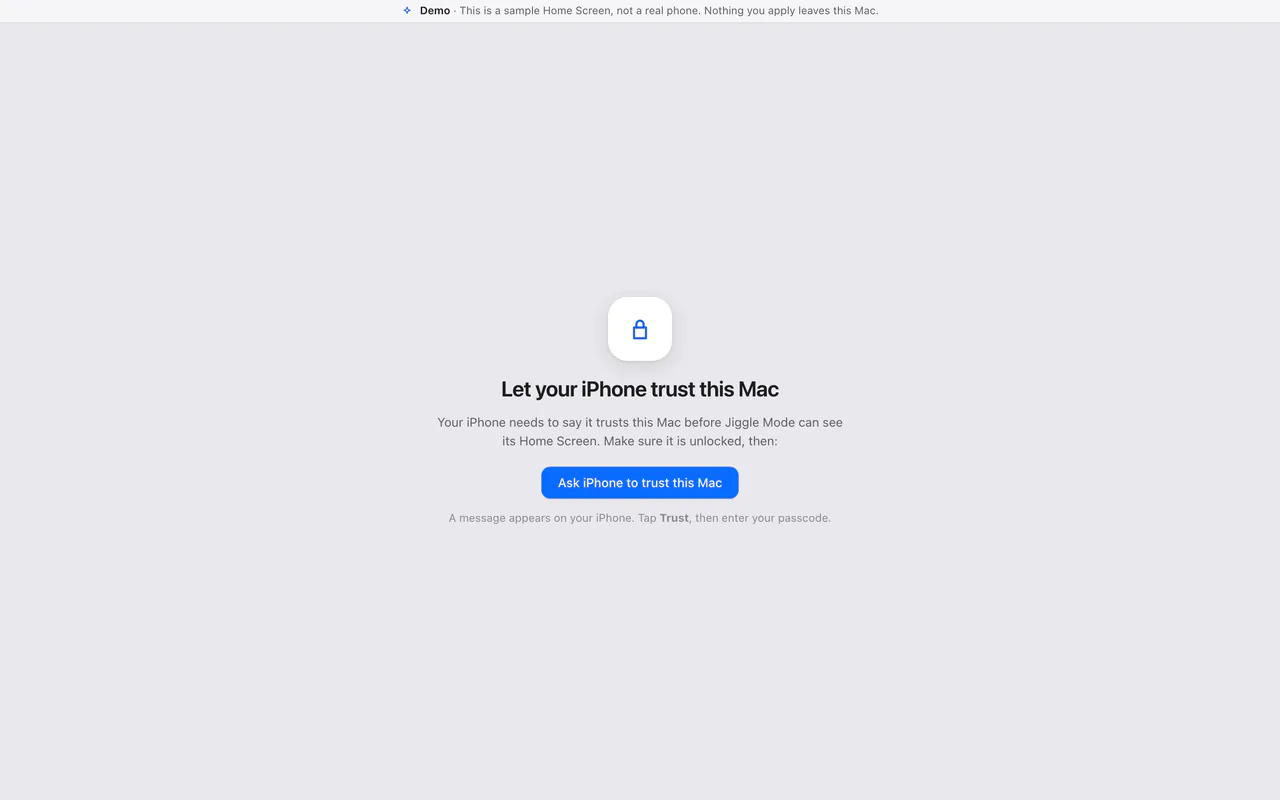
If you once tapped Don't Trust, see The phone doesn't trust your Mac.
#5. Take a first look
Your whole Home Screen appears: every page side by side, the Dock below, and the App Library on the right. The icons are your phone's own.
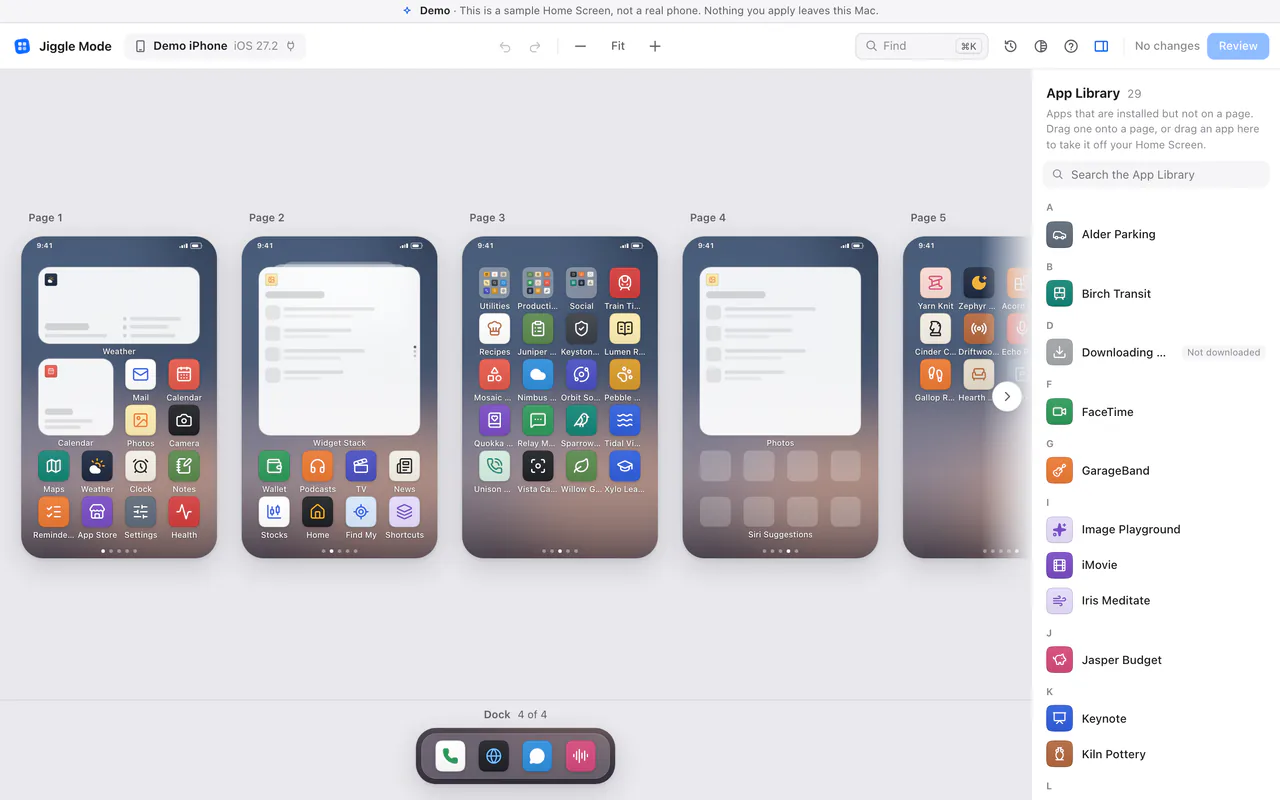
- Zoom with ⌘ + and ⌘ −, or ⌘ 0 to fit every page.
- Click a folder to open it.
- Press ? to see every keyboard shortcut.
Nothing you do in the editor reaches your phone until you click Review and then Apply. Next: Rearranging.
#Try it without a phone
To look around first, open the editor with a pretend iPhone full of made-up apps:
jigglemode --demoA banner at the top says Demo. Nothing you apply in the demo leaves your Mac.
#Over Wi-Fi
After this first setup with the cable, you can also connect over Wi-Fi. See Wi-Fi.