
Troubleshooting
jigglemode devices in Terminal is a quick way to see what Jiggle Mode sees: each connected phone and whether it is ready.
#No phone found
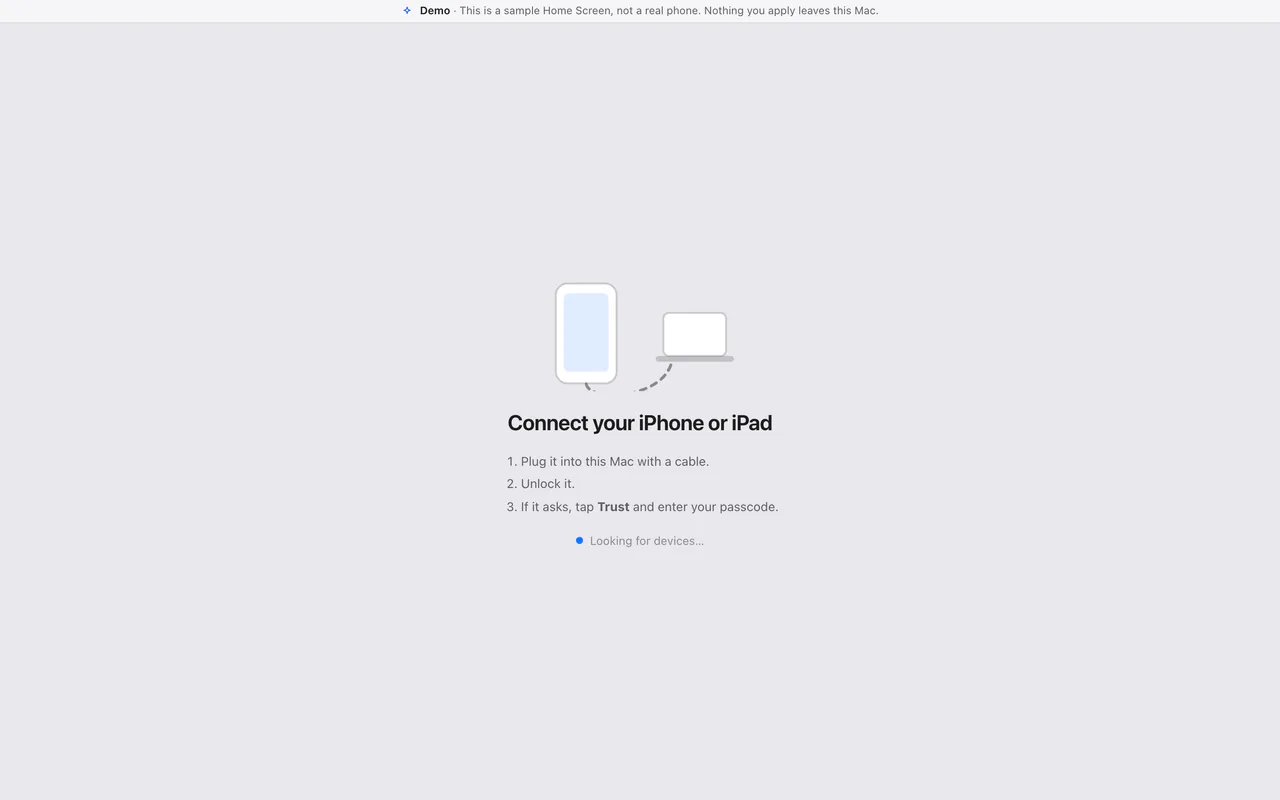
- Unlock the phone.
- Try another cable or another port. Some cables only charge.
- Check that Finder sees the phone (it appears in Finder's sidebar under Locations).
- Over Wi-Fi: the phone must be set up for Wi-Fi once with the cable, unlocked, and on the same network as your Mac.
jigglemode wifi statusshows whether it is on the network now.
#The phone doesn't trust your Mac
Unlock the phone, then click Ask iPhone to trust this Mac in the editor (or ask your agent to, or run jigglemode pair). Tap Trust on the phone and enter your passcode. Asking only works over the cable.
If you once tapped Don't Trust, the phone won't ask again by itself. Undo that on the phone: Settings, General, Transfer or Reset, Reset, Reset Location & Privacy. Then plug it in again. (This makes the phone forget every computer it trusts, and resets location and privacy settings for apps.)
#The phone is locked
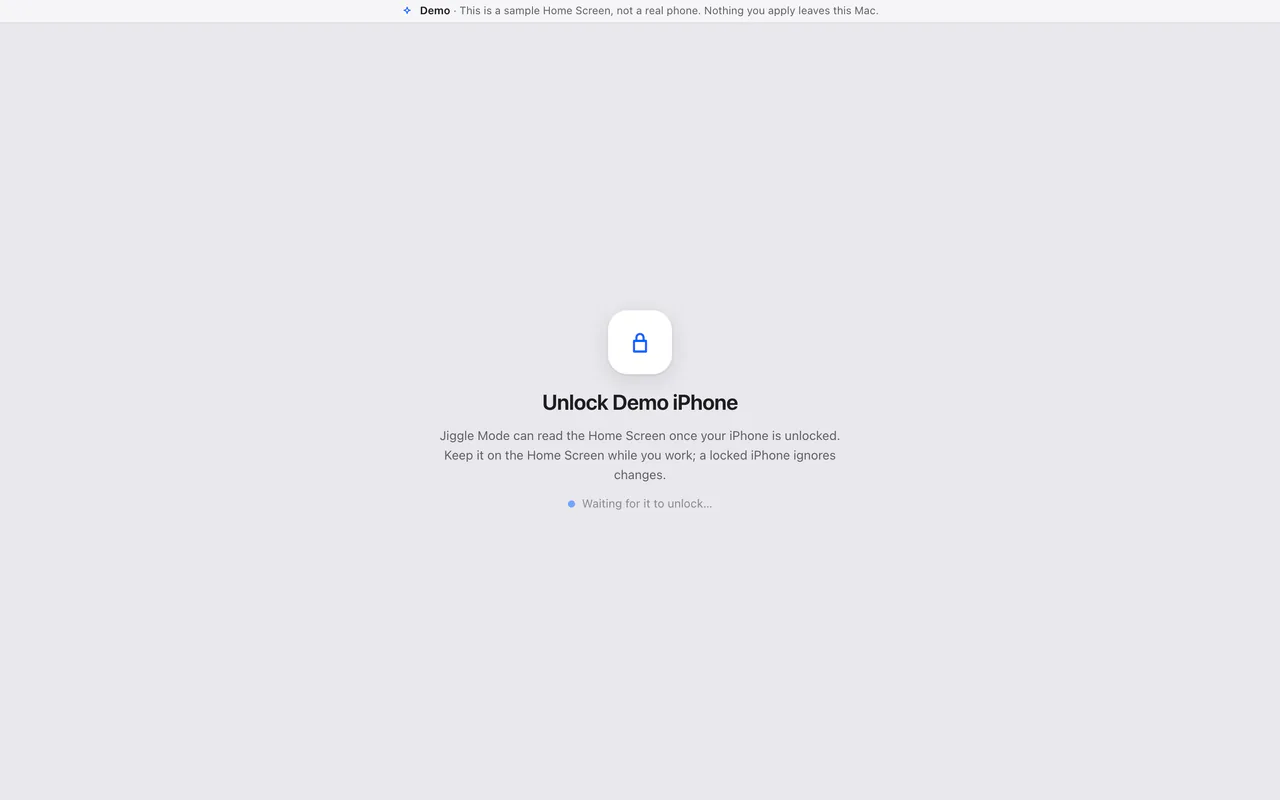
Unlock it and stay on the Home Screen. While you rearrange, setting Auto-Lock to Never (Settings, Display & Brightness) helps; set it back afterwards.
#The phone ignored the change
The result said Your iPhone didn't take the changes. The phone kept its old layout, so nothing needs undoing. It was probably locked or asleep. Unlock it, stay on the Home Screen, and click Try again.
#The change was put back
The result said Your changes were undone. The phone didn't end up exactly as planned, so your previous layout was put back and checked. Nothing was lost; your edits are still in the editor. Try again with fewer changes at once. If it keeps happening, write to hello@jigglemode.com with what What was different says.
#Unfinished change: the result is unknown, or the old layout may not be back
The result said Couldn't check the result or Your previous layout may not be back, or Jiggle Mode refuses new changes because an earlier one is unfinished.
- Don't apply again yet.
- Make sure the phone is connected and unlocked, and look at its Home Screen.
- Click Check the phone in the editor, or run:
jigglemode resolveIt tells you whether the phone shows the layout from before, the new one, or something else, and lets you make changes again. If the phone looks wrong, restore the backup taken just before that change (jigglemode restore --latest is that backup, or pick it in History).
#The phone changed since you started
Something changed on the phone (an app was installed, removed or moved) while you were editing. Nothing was sent. Click Reload and keep my edits, check the review again, and apply.
#Local Network permission
To find your phone over Wi-Fi, macOS may ask whether Jiggle Mode may find devices on local networks. If you run jigglemode from Terminal or from an agent app, macOS may ask about that app instead. Click Allow.
If you clicked Don't Allow, open System Settings, Privacy & Security, Local Network, and turn the switch on for Jiggle Mode (or for Terminal, or your agent app). Then try again. The cable doesn't need this permission.
#The browser didn't open
Copy the address that jigglemode printed (it starts with http://127.0.0.1) into your browser. The address includes a private key for this session, so use the whole thing. If the editor says Open Jiggle Mode from the app again, the address was incomplete or from an earlier session: open Jiggle Mode again.
#Your agent can't start Jiggle Mode
Use the full path that which jigglemode prints in the agent's setup, instead of just jigglemode. See Using it with your AI agent.
#Your agent says writing is off
That's the default for agents. See Read-only, or allowed to make changes to allow it. This only affects agents: the editor and the jigglemode command can always write, and they ask you first.
#Your agent says it can't ask you to confirm
Its app can't show Jiggle Mode's confirmation, and the Jiggle Mode window couldn't be shown on your Mac either, so nothing was written. Make the change in the editor instead, or use an agent app that can ask you.
#A change says the installed app list is incomplete
Before writing, Jiggle Mode checks that the phone's list of installed apps covers everything on the Home Screen, so it never sends a layout that could lose an app. If the check fails, it names the apps it couldn't find and writes nothing. Unplug the phone, plug it in again, and retry once. If it still fails, write to hello@jigglemode.com.
#Homebrew says the tap isn't trusted
Run brew trust belweave/tap, then install again.
#Still stuck?
Write to hello@jigglemode.com with your Mac's macOS version, your phone model and iOS version, and what you saw. jigglemode --version gives the Jiggle Mode version. Never send your passcode.