
Rearranging
Everything you do in the editor stays on your Mac until you review and apply it. Experiment freely: every step can be undone.
#Drag and drop
Drag any app, folder or widget to a new place on any page, or into the Dock. The other icons make room as you move, the way they do on the phone. Drag to the empty spot after the last page to make a new page.
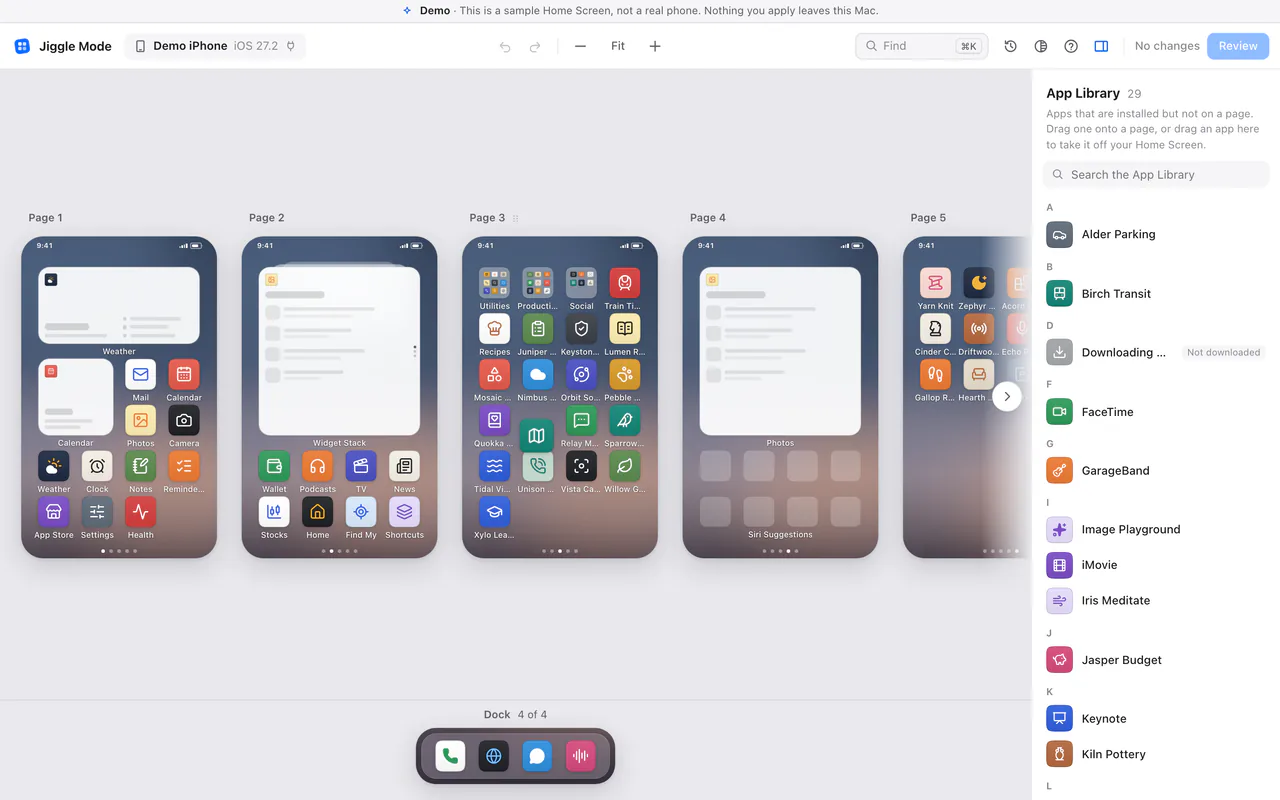
To move several things at once, hold ⇧ and click each one, or drag across an empty spot to select an area. Then drag any of them, or press M to pick where they should go.
To reorder pages, drag a page by its name (Page 1, Page 2 …). An empty page can be removed with the button next to its name.
When something can't go where you dropped it, the editor says why and leaves everything as it was. For example, widgets can't go in the Dock or in folders, and folders can't go inside folders.
#Folders
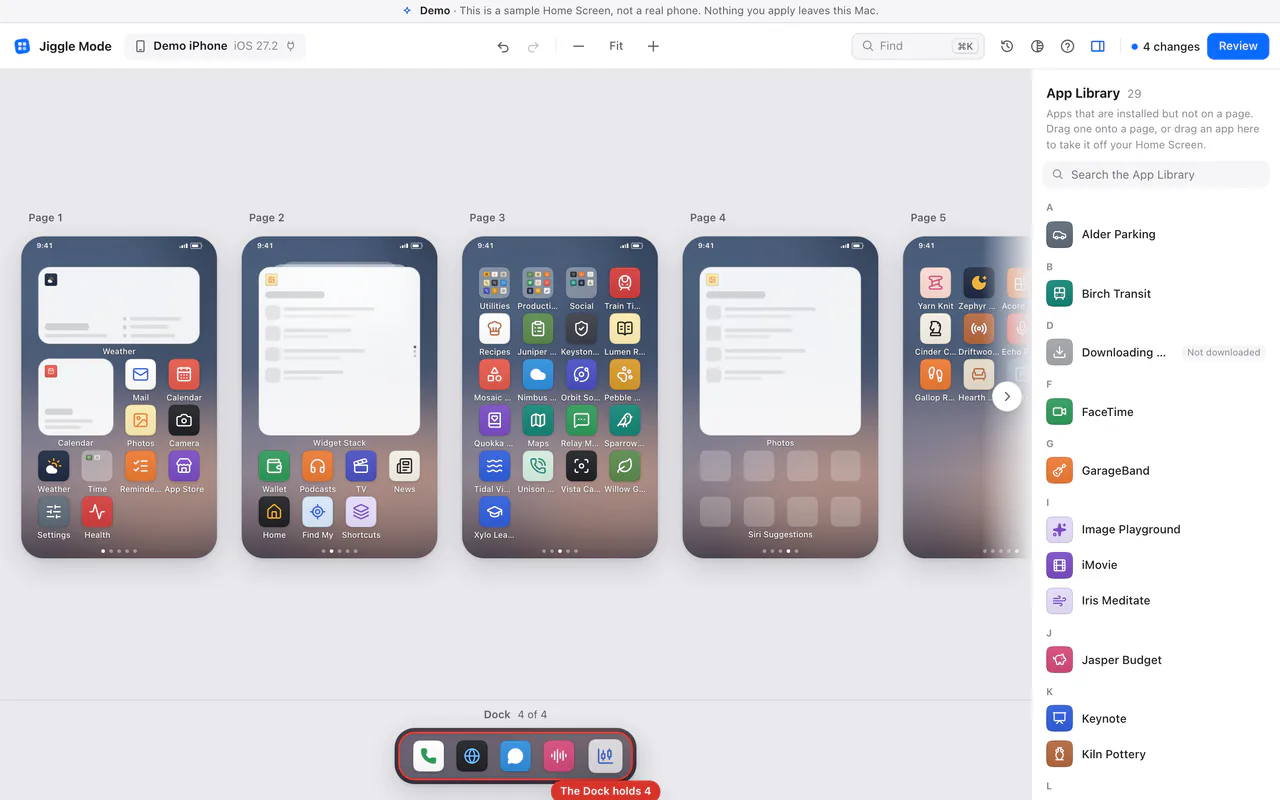
- Make a folder: drop one app on another.
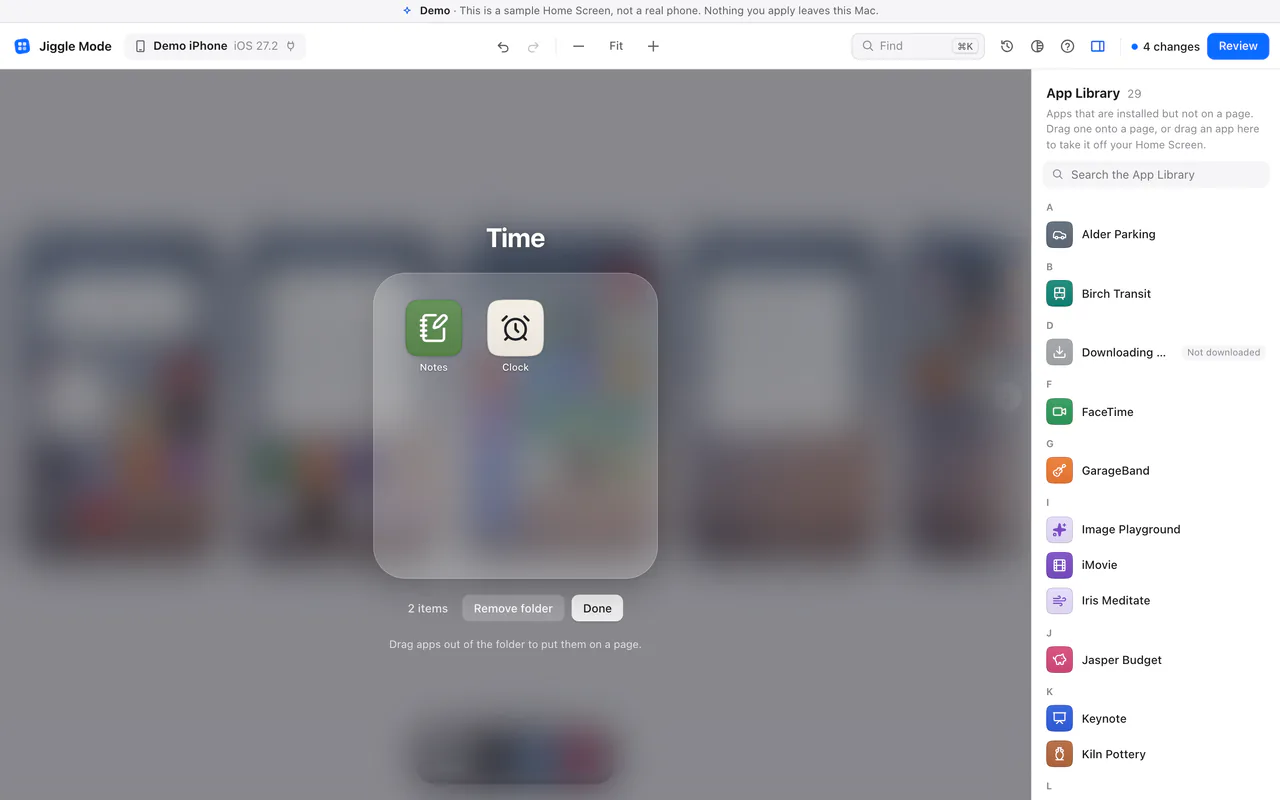
- Open a folder: click it. Inside, drag apps to reorder them, or out of the folder onto a page.
- Rename a folder: open it and edit its name at the top.
- Add a folder page: open the folder and drag an app to New folder page.
- Remove a folder: open it and click Remove folder. Its apps go back where the folder was, in order.
#The Dock
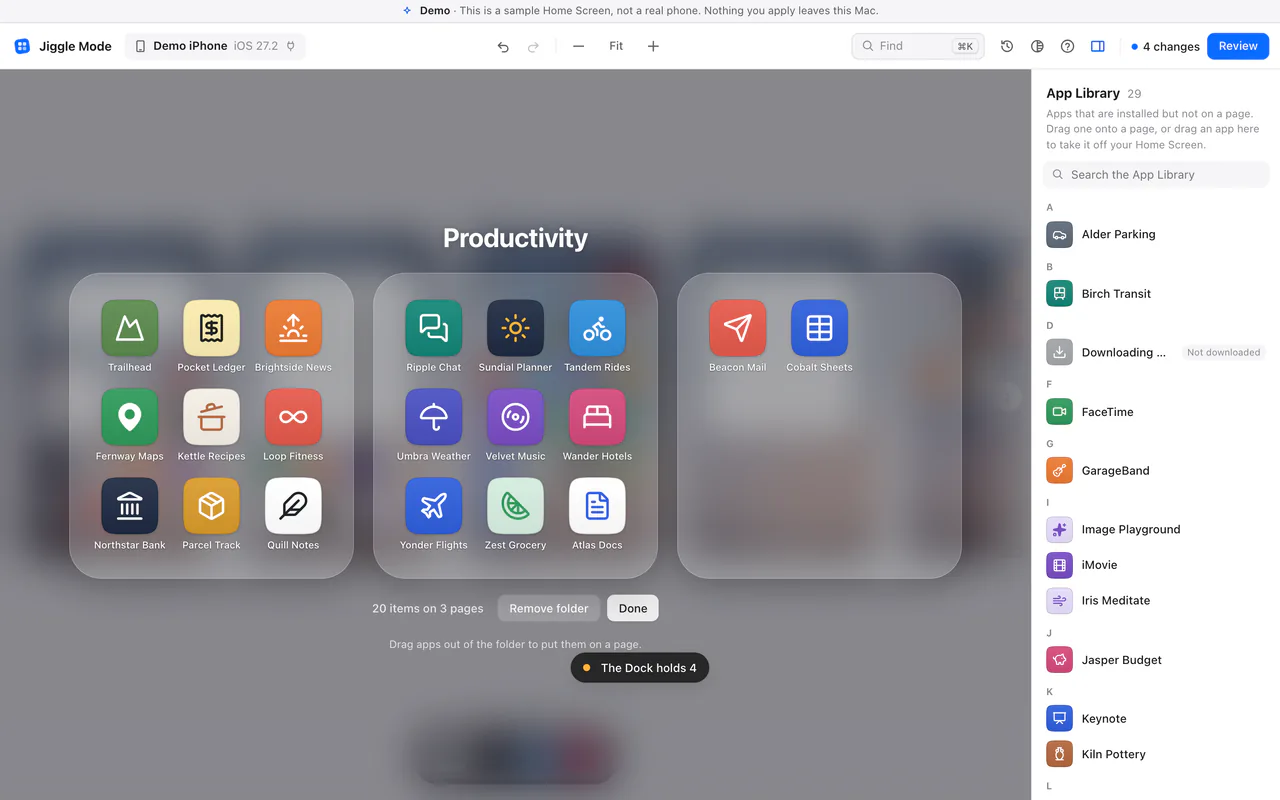
The Dock is below the pages and shows on every page of your phone. It has a fixed number of places (usually 4 on an iPhone); the editor shows how many are used, like 4 of 4. To put something into a full Dock, move one out first.
#Widgets
Widgets can be moved between pages, removed, and given another size. Select a widget to see the sizes it offers.
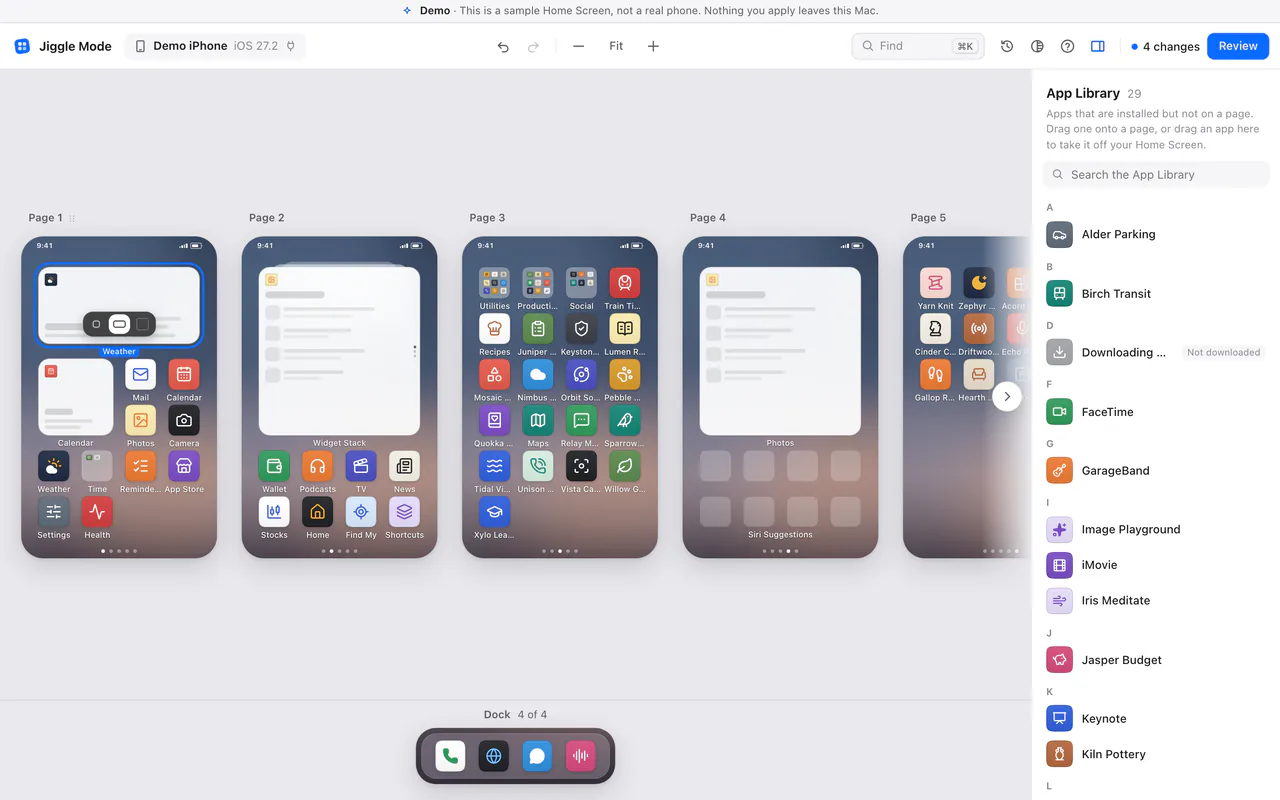
- Remove a widget: select it and press ⌫. Think twice: a removed widget can't be brought back from your Mac, not even by restoring a backup. You would add it again on the phone.
- Widgets can't be added from your Mac. Add them on the phone, then move them here.
- Resizing hasn't been confirmed on a real phone yet. The review tells you so; if the phone doesn't keep the new size, your previous layout is put back.
- Widget stacks move as one. A stack is expected to keep its top widget (it did on our test phone), but it may show a different widget on top afterwards.
#The App Library
The App Library list on the right shows apps that are installed but not on any page.
- Take an app off your Home Screen: drag it onto the App Library list, or select it and press ⌫. It stays installed and you can still find it on the phone by searching or in the App Library.
- Bring an app back: drag it from the list onto a page or into a folder.
Only apps go in the App Library: folders and widgets can't. Web clips (Safari web apps and website shortcuts) can be moved, but they can only be deleted on the phone.
#Find
Press ⌘ K or click Find and type a few letters. Results include apps on pages, apps inside folders, widgets, folders and pages.
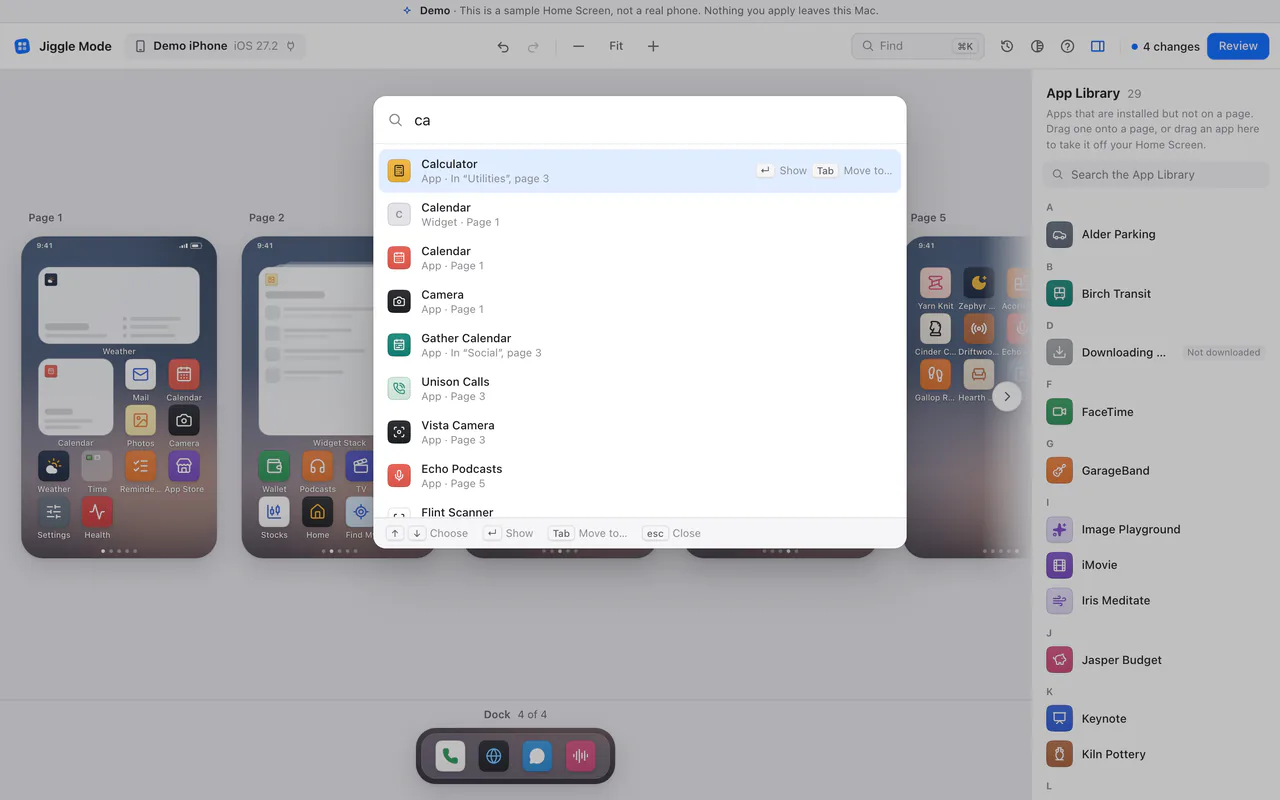
- ↑ ↓ choose a result, ↵ shows it.
- Tab moves it: pick a page, a folder, the Dock or a new page.
#Keyboard shortcuts
Press ? in the editor to see this list. On a Mac, ⌘ is the Command key.
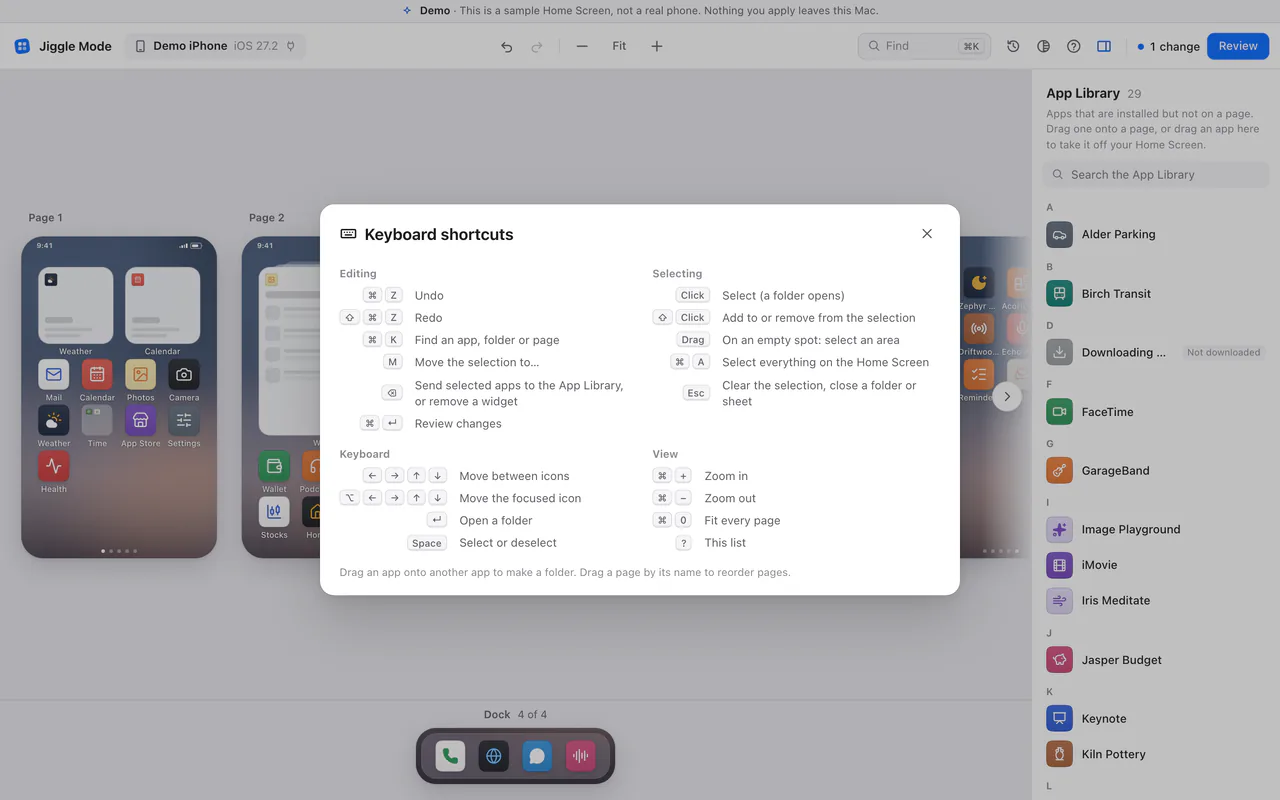
| Keys | What it does |
|---|---|
| ⌘ Z | Undo |
| ⇧ ⌘ Z | Redo |
| ⌘ K | Find an app, folder or page |
| M | Move the selection to… |
| ⌫ | Send selected apps to the App Library, or remove a widget |
| ⌘ ↵ | Review changes |
| Click | Select (a folder opens) |
| ⇧ Click | Add to or remove from the selection |
| Drag on an empty spot | Select an area |
| ⌘ A | Select everything on the Home Screen |
| Esc | Clear the selection, close a folder or sheet |
| ← → ↑ ↓ | Move between icons |
| ⌥ and an arrow key | Move the focused icon |
| ↵ | Open a folder |
| Space | Select or deselect |
| ⌘ + / ⌘ − | Zoom in / out |
| ⌘ 0 | Fit every page |
| ? | Show the shortcuts |
#Undo and redo
⌘ Z undoes your last step in the editor and ⇧ ⌘ Z redoes it, all the way back to how your phone looked when you opened the editor. The count next to Review shows how many changes you've made.
This undo is for edits you haven't applied yet. To undo a change that's already on your phone, see Backups and undo.
#Things the editor can't see
- Empty gaps you left between icons on the phone aren't visible to Jiggle Mode. Applying a change closes them up, on every page.
- Hidden pages (pages you hid on the phone) aren't shown. If you have any, unhide them on the phone before a big rearrangement.
More in Limits and compatibility.